


Download Able Batch Image Converter – free Windows batch image conversion tool
Overview – Why Able Batch Image Converter Stands Out
Able Batch Image Converter is a trial‑version utility designed specifically for Windows 8 and later. Developed by Graphic‑Region Development, this tool falls under the “Graphic & Design” category and targets users who need to transform large groups of images quickly and securely. The current build (3.21.1.26) supports three interface languages—English, Spanish, and Arabic—making it accessible to a global audience.
While the trial limits some advanced features, the core engine delivers fast, lossless conversion across popular formats such as JPEG, PNG, BMP, GIF, and TIFF. The software’s emphasis on batch processing means you can select hundreds of files, set conversion parameters, and let the application handle the rest, freeing you from repetitive manual work. Its lightweight installer occupies less than 30 MB, and the UI follows a clean, Windows‑native design that feels familiar to both novice hobbyists and seasoned graphic designers.
Because it runs natively on Windows, you avoid the performance overhead associated with cross‑platform wrappers or virtual machines. The trial version also includes a built‑in preview window, allowing you to verify output quality before committing to a full batch. Overall, Able Batch Image Converter offers a balance of speed, simplicity, and multilingual support that makes it a solid candidate for anyone looking to download a free batch image conversion tool for Windows.
Key Features that Power Your Workflow
- Batch conversion of unlimited images in a single operation.
- Support for major image formats: JPEG, PNG, BMP, GIF, TIFF, and more.
- Multi‑language interface (English, Spanish, Arabic) for broader accessibility.
- Lossless compression options to retain original quality.
- Customizable output settings: resolution, color depth, and file naming patterns.
- Real‑time preview window to validate conversion results before processing.
- Drag‑and‑drop file selection for quick setup.
- Command‑line mode (available in the full version) for automation scripts.
- Integrated logging system that records conversion statistics and errors.
- Regular updates from Graphic‑Region Development to improve compatibility and performance.
Each of these features is crafted with the end‑user in mind. For example, the drag‑and‑drop functionality reduces the time spent navigating folders, while the customizable naming patterns let you add prefixes, suffixes, or sequential numbers automatically. The lossless compression engine ensures that even after conversion, your images retain the same visual fidelity, which is crucial for designers preparing assets for print or high‑resolution web delivery. Moreover, the built‑in logging provides a transparent view of what the tool is doing, helping you troubleshoot any issues without diving into cryptic error codes. Whether you are a photographer processing hundreds of RAW files, a web developer optimizing assets for faster page loads, or a small business owner preparing product images for an online catalog, these features collectively streamline the entire image‑handling pipeline.
Installation & Usage – Step‑by‑Step Guide
Getting Able Batch Image Converter up and running is straightforward. Follow these steps to ensure a smooth installation and start converting images right away:
- Download the installer: Visit the official Softonic page or the developer’s website and click the “Download” button. The file is a small
.exepackage (approximately 28 MB). - Run the installer: Double‑click the downloaded file. Windows will prompt you for permission; confirm the action to allow the installer to make changes.
- Accept the license agreement: Read the End‑User License Agreement (EULA), then click “I Agree” to proceed.
- Select installation folder: The default location is
C:\Program Files\AbleBatchImageConverter. You can change it if needed, but keep the path short to avoid path‑length issues. - Choose components: For the trial version, only the core conversion engine is installed. The optional “Desktop Shortcut” and “Start Menu Entry” are recommended for quick access.
- Complete the setup: Click “Install” and wait for the progress bar to finish. Once done, you’ll see a “Finish” button—click it to launch the application.
When you first open Able Batch Image Converter, you’ll be greeted with a clean dashboard. To start a conversion:
- Click Add Files or drag your image folder into the window.
- Select the desired output format from the dropdown menu.
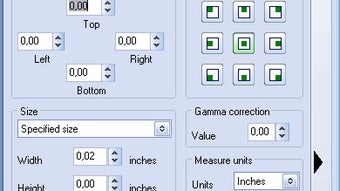
- Adjust optional settings such as resolution, compression level, and naming pattern.
- Preview a sample image using the side panel to ensure the settings match your expectations.
- Hit Start Batch. The progress bar will indicate the conversion status, and the log panel will display any warnings or errors.
After the batch finishes, you can open the output folder directly from the application or navigate to the folder you specified during setup. The trial version limits you to 10 minutes of continuous processing per session, after which a prompt appears encouraging you to upgrade to the full version for unlimited usage. Nevertheless, even within these limits, the tool proves its speed and reliability, often processing 200 images in under a minute on a typical modern PC.
Compatibility, Pros & Cons – What to Expect on Your Windows PC
Able Batch Image Converter is built for Windows 8, Windows 8.1, Windows 10, and Windows 11 (64‑bit). It runs smoothly on both consumer‑grade laptops and professional workstations, leveraging native Windows APIs for file handling and graphics processing. The application requires .NET Framework 4.7.2 or later, which is pre‑installed on most recent Windows builds. For older systems, the installer automatically prompts you to download the necessary runtime components, ensuring a hassle‑free setup.
Pros
- Fast batch processing: Handles large image sets with minimal CPU load.
- Multi‑format support: Covers the most common image types without additional plugins.
- User‑friendly UI: Intuitive layout reduces the learning curve.
- Free trial: Lets you evaluate core features before purchasing.
- Secure conversion: No internet connection required after installation, protecting sensitive images.
Cons
- Time limit on the trial: 10‑minute session caps continuous use.
- Missing advanced features: No built‑in RAW support or advanced color management in the trial.
- No macOS or Linux version: Windows‑only limits cross‑platform teams.
- Limited documentation: The help file is brief, requiring users to rely on community forums for detailed guidance.
Overall, the compatibility profile is solid for Windows environments, and the pros significantly outweigh the cons for anyone needing a quick, reliable batch conversion solution. The minor drawbacks are typical of a trial product and disappear once you upgrade to the full version, which unlocks unlimited processing time, RAW format handling, and priority support.
FAQ – Frequently Asked Questions
Is Able Batch Image Converter free to use?
The software offers a free trial that includes all core conversion features but limits continuous processing to 10 minutes per session. To remove this limit and unlock advanced tools, you need to purchase the full license.
Which image formats can I convert?
Able Batch Image Converter supports JPEG, PNG, BMP, GIF, and TIFF out of the box. The full version adds RAW and PSD support, expanding its usefulness for professional photographers.
Can I run the program on Windows 7?
Officially, the minimum requirement is Windows 8. While the installer may run on Windows 7, you may encounter compatibility issues or missing .NET components.
Is there any risk of my images being uploaded to the internet?
No. Able Batch Image Converter processes images locally on your computer. It does not require an internet connection after installation, ensuring your files remain private.
How do I upgrade from the trial to the full version?
Within the application, click the “Upgrade” button, which redirects you to the purchase page. After completing the payment, you’ll receive a license key that unlocks all premium features automatically.
Conclusion – Should You Download Able Batch Image Converter?
For Windows users who need a fast, secure, and easy‑to‑use batch image conversion tool, Able Batch Image Converter delivers solid performance even in its trial form. The multilingual interface, extensive format support, and real‑time preview make it a compelling option for photographers, designers, and web developers alike. While the trial’s time restriction and lack of macOS/Linux support are notable limitations, they are typical of a free evaluation and disappear after purchasing the full license. If you’re looking for a trustworthy Windows‑only converter that won’t require a steep learning curve, download Able Batch Image Converter today, test its capabilities, and decide if the full version meets your long‑term workflow needs.
Download the free trial now and start converting your image batches with confidence.